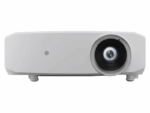
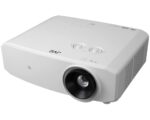
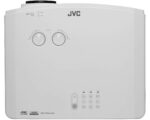
We suspect most of you will be mounting your new NZ-3 on the ceiling. If you are, it’s a good idea to first just put the projector on a table and change the settings to be front ceiling as it comes defaulted to front. This way you will not be trying to read menus upside down after you have the projector installed.
There is a catch in using the menu in all front projectors and if this is your first one, you may not know it. You can normally see the menu, but will not be able to make any adjustments unless there is a source coming in. So be sure and plug some kind of source into your projector when you are initially setting things up and turn on that source.
Then, simply go to Installation/Projector Mode/ and select Front Ceiling. The image will flip upside down, but once you hang the projector you will be good to go.
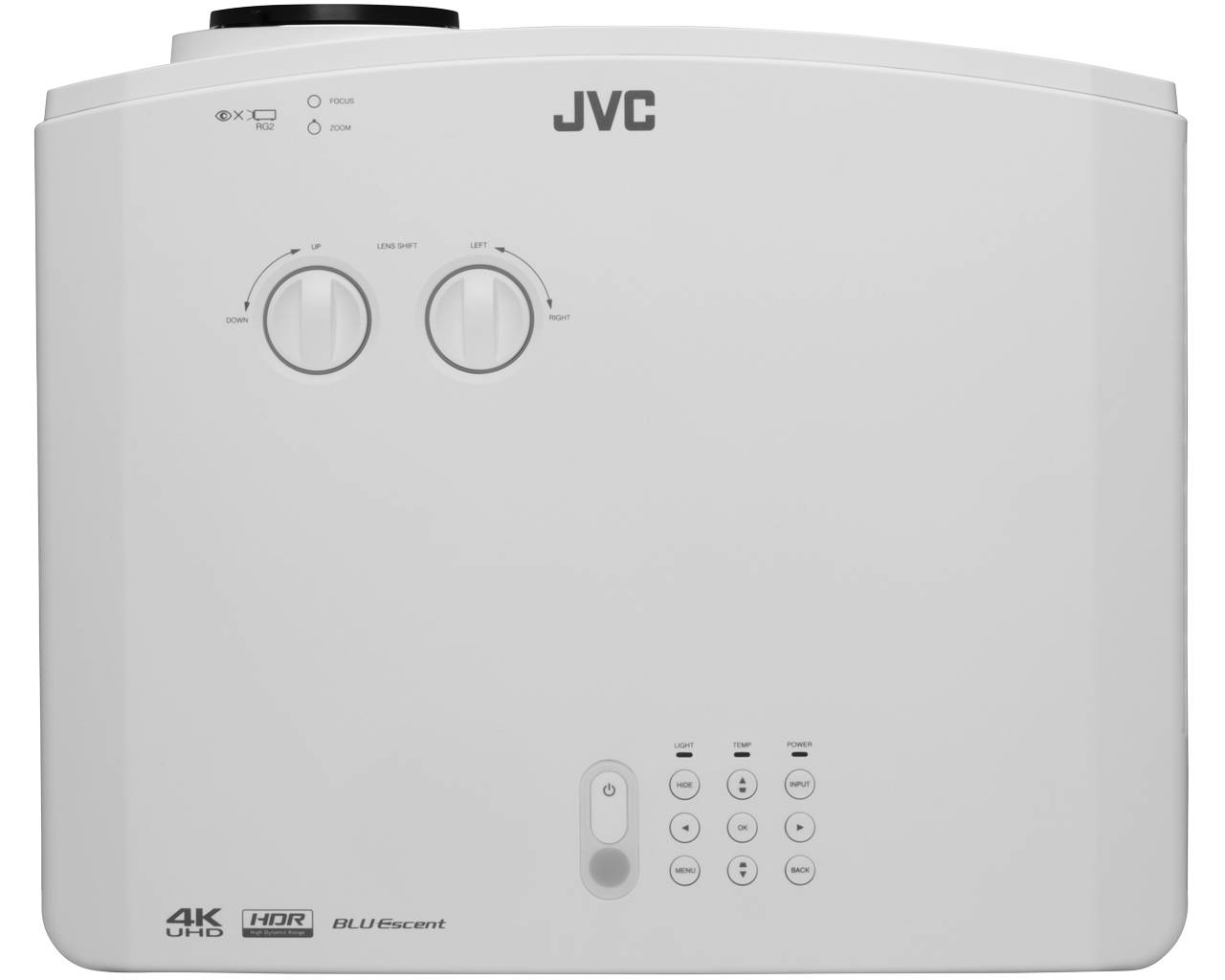
While the NZ-3 has adjustments for lens shift to keep it from having to be perfectly centered on the screen, you will get the best performance if you can try and get it close.
The more critical factor is not going outside the vertical range. This is easy to find out by using the chart on page 15 and 16 in the manual.
Here is an example. We have a 100” diagonal screen, which means the image is 49” tall. The center of the projector’s lens can be up to 53.9” above the bottom of this 49” image. If you subtract the two numbers, you find you can have the center of the lens up to 4.9” above the top of your screen’s image.
If you can, we suggest you keep the top of the projector lens even or below the top of your screen material for the best results, but if you want the projector up a little higher, you have some room.
When you are setting up your projector mount, please make sure you get the projector perfectly level. While the LX-NZ3 does have keystone adjustments, it is better not to use them.
Fitting the Image to the Screen
Once you have everything mounted and level, make sure you connect your HDMI cable to HDMI Input 1 to enable 4K.
Turn on the projector, go to the installation section of the menu, and turn on the test pattern.
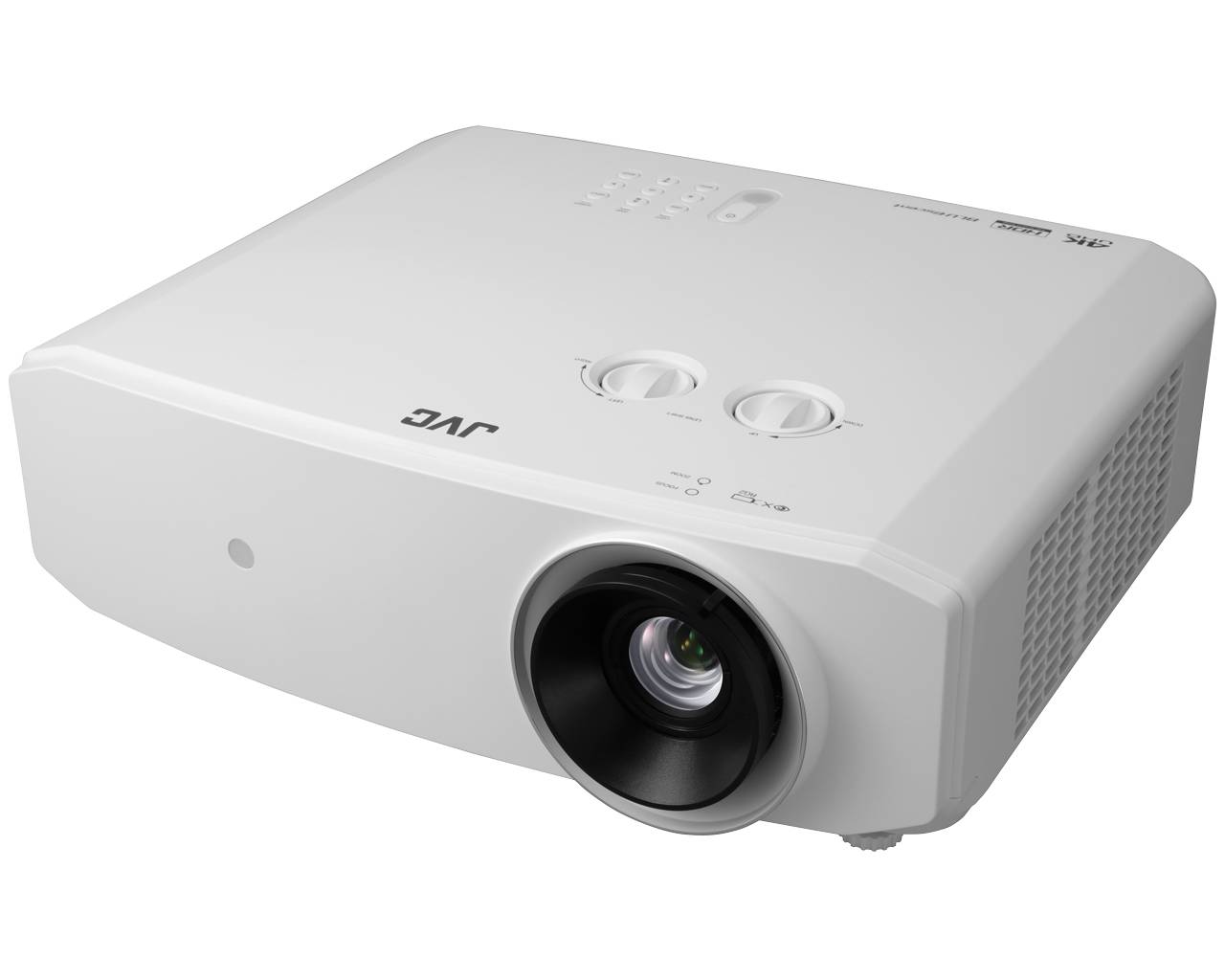
Carefully turn the little tab around the lens and you will see the picture zoom in and out. Do not look directly into the lens. If you have centered the projector on the screen, the image should be well centered, but if it is not, you can use the lens shift knobs to fine-tune it.
You will probably have to play a little bit with the sizing and offset to get it perfectly centered on the screen.
If you have a zero edge type screen, you can skip this next step, but if you have a normal screen with blackout material on the sides, we like to push the image just a tiny bit into the black material.
With the NZ3, the test pattern will work great for this, just zoom out a tiny bit and use the lens shift functions until you have the green grid about ¼-½” on the black area.
Picture Adjustments
According to the technical team at JVC, the most important thing to choose correctly is the right setting for your viewing environment.
Under Picture Mode, you will see Natural, Cinema, and Dynamic.
If you can get your home theater completely dark, and want the best possible color and contrast, choose Cinema.
If you have some light in your home theater, but not much, choose Natural.
If you are in a room where you can not control the lighting, choose Dynamic — however be aware this setting sacrifices both color and contrast accuracy to deliver more brightness, so just experiment to see which you prefer.
Obviously, you can feel free to experiment with these.
Other Adjustments
JVC recommends you keep everything else set as it comes out of the box. All of the things like color, contrast, tint, brightness, and sharpness should be set to zero.
Under Advanced, Gamma should be 2.2, and Color Temperature should be Normal.
If you own a Syder 5, which is an aftermarket video calibration device, you can try to further fine-tune your NZ3, but JVC tells us you are probably better off leaving it alone as out of the box is fantastic.
There is one exception. If you are using an ambient light rejecting screen that is dark grey or black, you may want to go into the Movie Pro settings, turn on Skin Tone, and try adjusting there to increase perceived brightness. This you can just do by eye.
Eco Mode should normally be left off unless you have a very small screen (under 92” diagonal).



 CASH ON DELIVERY
 CONTACTLESS DELIVERY
 Guaranteed Safe Checkout
 Hassle Free Delivery



Reviews
Clear filtersThere are no reviews yet.